Show me:
Just tell me what to press.
Four steps, about ten minutes
This is for a TV that says Google TV or Android TV when it starts, like most TCL, Sony, Hisense and Philips TVs. All you need is the TV remote. Nothing is deleted, and one button puts it all back.
Open Beyond™ TV, choose Home Screen, then Original. Your old home screen and every app come back exactly as they were.
What it looks like
Your streaming apps on one shelf, a profile for each person, and no ads on the home screen. The apps themselves are unchanged, ads and all.
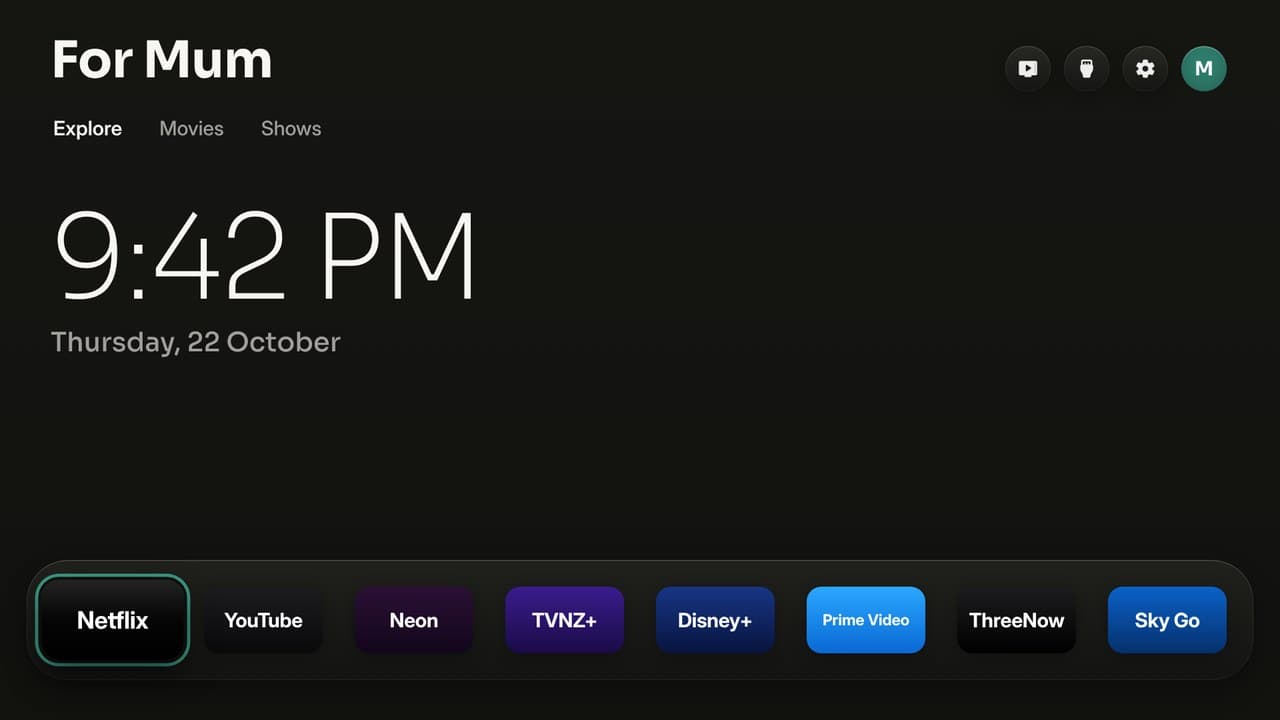
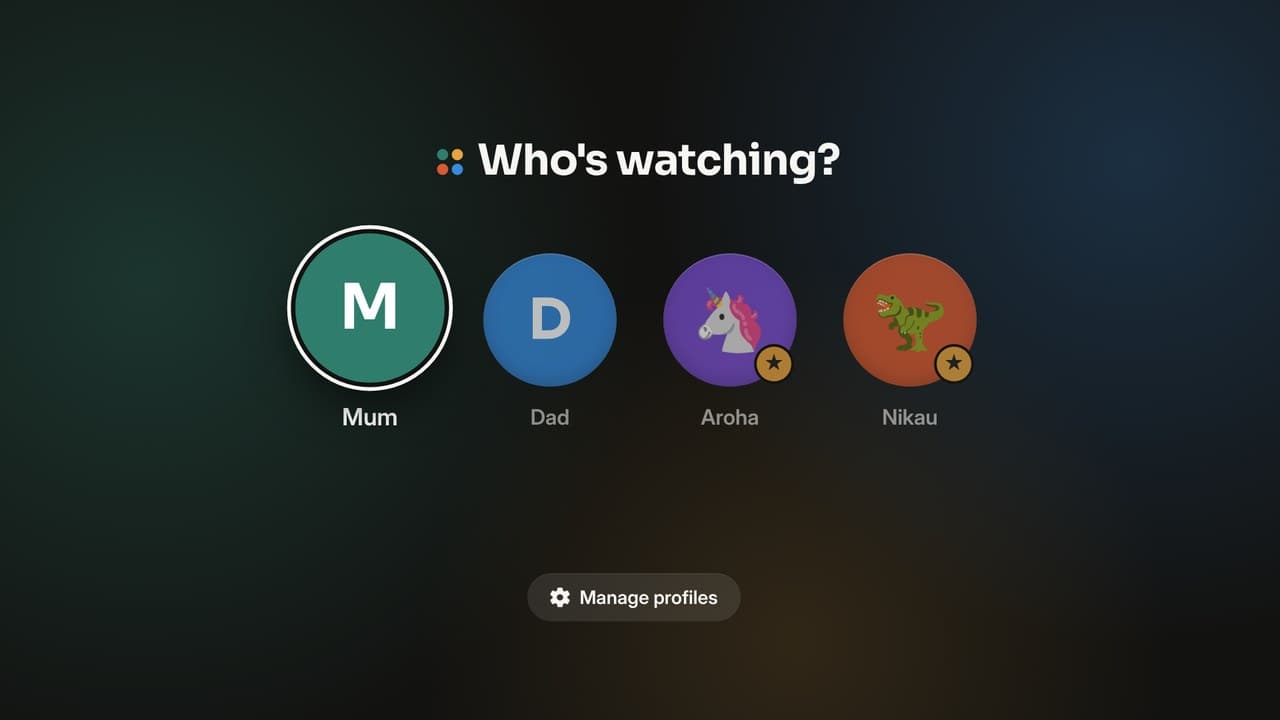
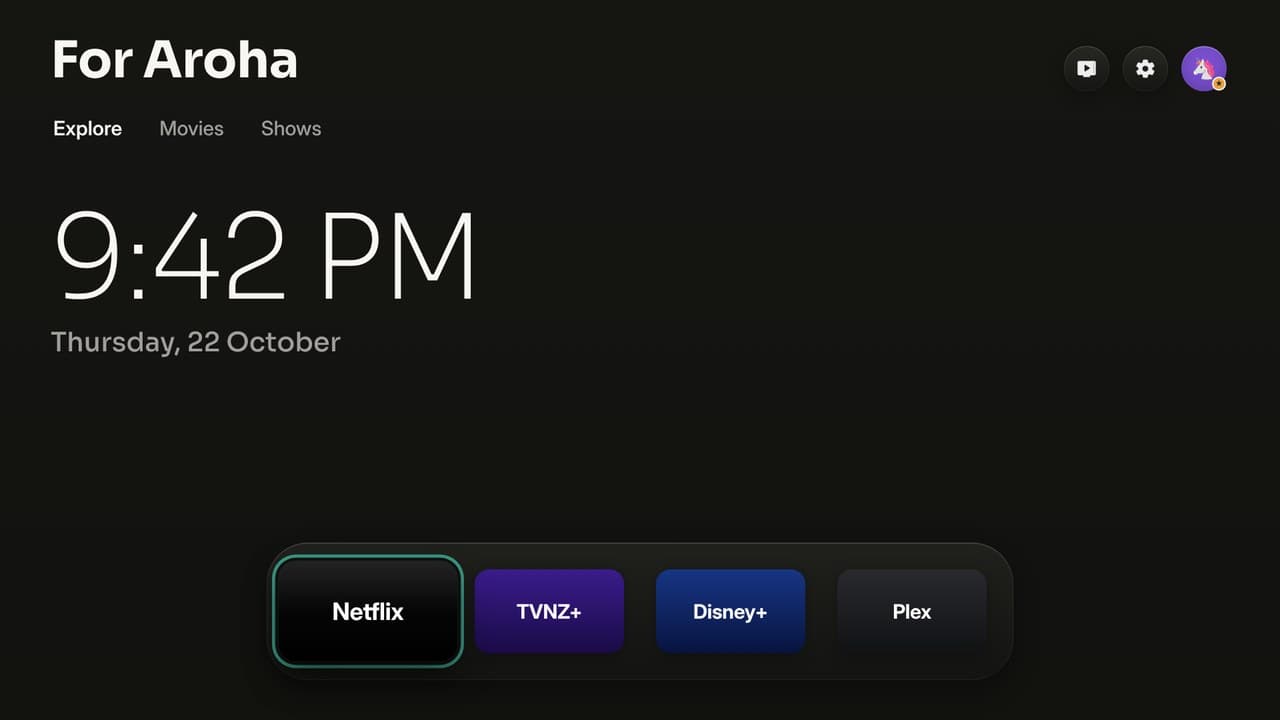
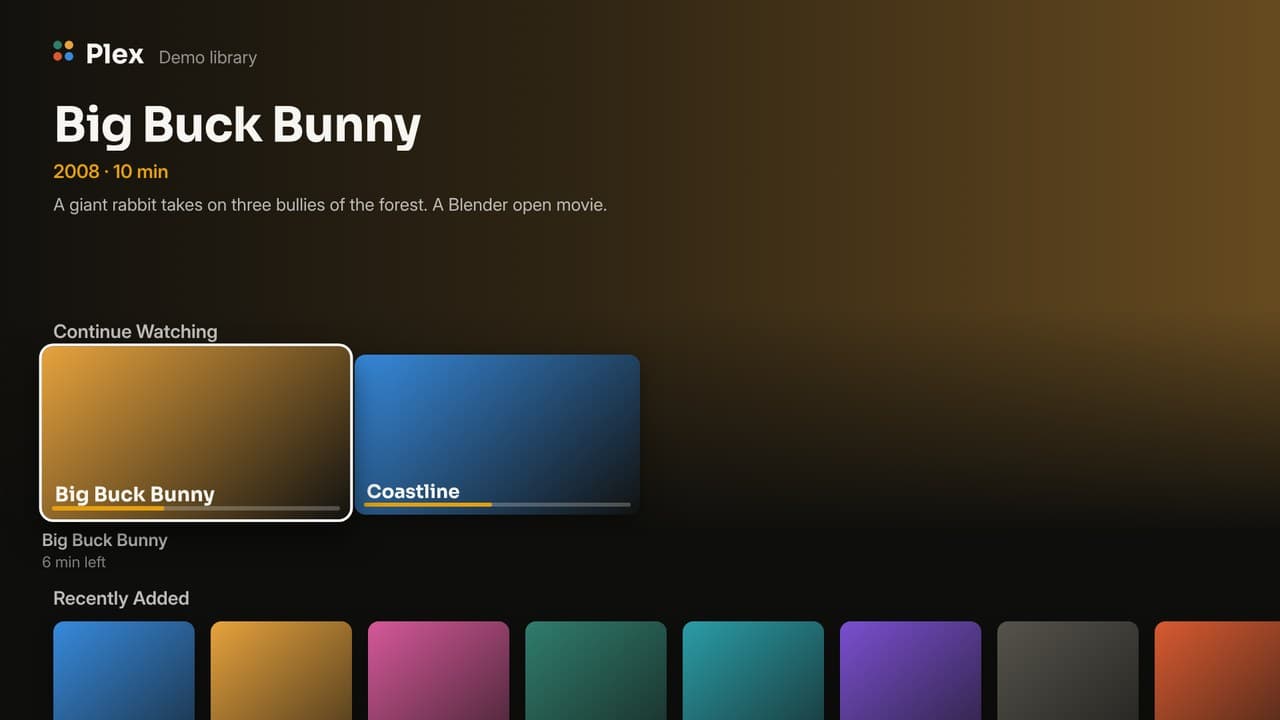
What you get
No ads means on the Beyond™ TV home screen. The streaming apps themselves are unchanged, ads and all.
How to install
Pick your TV. Nothing is rooted, nothing is uninstalled, and you can go back to the original home screen any time.
About five minutes, for a Google TV or Android TV (Android 8 or newer, so Sony's 2015 Bravias too). Nothing is rooted or uninstalled.
First, on the TV: Settings → System → About, press Build (or Android TV OS build) seven times, then Settings → System → Developer options → turn on USB debugging. Beyond™ TV needs it to switch the home screen, and the computer installers use it too.
On the TV, no computer
- Install Downloader (by AFTVnews) from the Play Store on the TV.
- Open it, type
gobeyond.nz/tvappand press Go. - It downloads by itself: press Install and Open. If the TV asks, allow Downloader to install apps.
From a computer, one line
On the same Wi-Fi as the TV. It downloads Google's adb if you don't have it (into a folder of its own), finds your TV, installs Beyond™ TV, opens it and tells you what to press.
Mac or Linux, in Terminal:
curl -fsSL https://raw.githubusercontent.com/YeahBuddyNZ/Beyond.TV/main/install.sh | bashWindows, in PowerShell:
irm https://raw.githubusercontent.com/YeahBuddyNZ/Beyond.TV/main/install.ps1 | iex
The TV asks Allow USB debugging?: tick Always allow and press OK.
Then, on the TV
Open Beyond™ TV → Home Screen → Beyond™ TV, and allow debugging once more. Your city, the shelf and the profiles are in its settings. From then on it keeps itself up to date: when there's a new version the TV asks, and one OK installs it.
These installs are the ready-made build: Auckland until you pick your city on the TV, and no trending picks (those need your own TMDB key, so build it yourself below).
With an AI assistant
Open Claude Code, Codex or Antigravity and say:
Install Beyond™ TV (github.com/YeahBuddyNZ/Beyond.TV) on my TV at 192.168.1.50. I live in Auckland.
It builds your own copy with your city and your TMDB key, puts it on your TV, and asks before anything important.
Build it yourself
- On the TV, turn on USB debugging (above).
Tools: a JDK (17+), the Android SDK command-line tools (build-tools 34, platform android-34) and adb. On a Mac:
brew install --cask temurin android-commandlinetools android-platform-tools
sdkmanager "build-tools;34.0.0" "platforms;android-34"
On Linux, get OpenJDK 17, Android's command-line tools and adb from your package manager, then run the same
sdkmanagerline. On Windows, use Git Bash (which Claude Code uses there) or WSL.Build:
./build.shThe first run creates
config.properties. Set your city and your TMDB key there, then run it again.Install:
adb connect 192.168.1.50:5555
adb install -r BeyondTV.apk
On TCL TVs, also let it run in the background (TCL blocks it by default, and the switch never starts):
adb shell "appops set nz.gobeyond.tv AUTO_START allow || appops set nz.gobeyond.tv APP_AUTO_START allow"- On the TV, open Beyond™ TV → Home Screen → Beyond™ TV.
Good to know
What's coming
The plan, in order. Some of it is built and rolling out; the guide above says what works today.
- Who's watching: done. Family first (everyone together, family-friendly picks), then a profile for each person, with kids' profiles behind a grown-up PIN.
- Plex built in: link with a code at plex.tv/link, then Continue Watching and Recently Added on the home screen.
- All your services as one: one "What's on" across every service you have, opening each title in its own app.
- Beyond Family: pairing the TV with your household (a code typed into the app), the household's people as profiles, a phone remote and messages on the screen: done on Google TV, LG and Samsung. On Google TV in Beyond TV mode the remote works inside other apps too. Still to come: voice search for kids and the family house game on the big screen.
- Picks for kids: done on Google TV, LG and Samsung. A kid's cards are good shows matched to what they're into, set by a grown-up (Beyond Family or behind the PIN) or by the kid ("What do you like to watch?"), and coming back from an app the TV now and then suggests one. No TMDB key needed. On Google TV the picks come from what is set in Beyond Family; the "What do you like to watch?" card and the suggestion after an app are LG and Samsung for now.
- Two homes, one show: done on LG and Samsung. The Beyond Family app starts a countdown on every TV in two linked homes, and reactions come from phones. Google TV once it pairs with Beyond Family.
- Earn your screen: done on Google TV, LG and Samsung. Switched on in Beyond Family, a kid's apps wait until their jobs for today are ticked off. On Google TV the remote's own app buttons (Netflix, YouTube) still open their apps for now.
- The house noticeboard: done on LG, Samsung and Google TV. Switched on in Beyond Family, today's calendar, tea, birthdays and notes show in Tonight at home, and on LG and Samsung beside the screensaver clock too.
- Bedtime breathing: done on Google TV, LG and Samsung. A night light that breathes, slowing from six breaths a minute, then fades to dark. From the moon on the home screen in the evening, or from the Beyond Family app.
- Fine day nudge: done on LG and Samsung. On a mild, dry day the TV suggests going outside, and counts the time as green time in Beyond Family when you're back.
- Dinner question: done on Google TV, LG and Samsung. One question on the TV from Beyond Family, answered from phones, and the answers revealed together.
- Te reo word of the day: done on Google TV, LG and Samsung. A new kupu each day on the home screen, with what it means, and on the LG and Samsung screensaver how to say it. Te reo Māori in Home Settings turns te reo off: the word of the day goes and "Kia ora" becomes "Hello".
- Beyond™ TV for business (testing now): shop-window screens changed from the web, as a subscription. Open tv.beyondspaces.nz on the TV, type its code into Beyond™ Spaces, and it plays your pictures, videos and web pages. Free for homes, always.
- Your face on any TV: done on Google TV, LG and Samsung. Each person's face, colour, world, loves and shelf live with them in Beyond Family, so every TV at home shows them and a new TV brings them across. On somebody else's Beyond TV, Who's watching › Sign in with Beyond Family shows a code to type into your phone, and your own profile is there until you sign out. Google TV takes the face, colour, world and loves; the shelf follows.
- Sleep timer: done on Google TV, LG and Samsung. Sleep Timer in the menu under the shelf: each press picks 15, 30, 60 or 90 minutes, or off. A note a minute before, then the TV turns off (on Samsung, which lets no app turn it off, the screen goes dark until a key is pressed).
- Art mode: done on Google TV, LG and Samsung. Like a Samsung Frame, the screensaver shows paintings from the Art Institute of Chicago's public domain collection, filling the screen with no clock or words on it (family messages still show; only paintings about the screen's shape are picked, so little is cropped), a new set each day. Home Settings › Kind of art picks landscapes, the sea, gardens and flowers, mountains, impressionism, still life or Mixed (a different theme each day). On Mixed, in a season it shows our own art instead: Halloween (24/10 to 1/11) and a New Zealand summer Christmas (1/12 to 26/12), drawn by
tools/season_art.jsand listed indocs/art/seasons.json, so new pictures reach every TV without an update. On by itself when there is no TMDB key; Home Settings › Screensaver picks Art or Film photos. - Have the pets been fed?: done on LG and Samsung. When a kid picks their face and the household's pets in Beyond Family still want a meal, the TV asks. "Yes" ticks them fed in Beyond Family with the kid's name; "Not yet" sends them off and the TV asks again later. Google TV soon.
- A home screen of its own: done on LG, Samsung and Google TV. A "Kia ora" greeting with your name, Keep watching (what you last opened from Beyond, per profile, as little TV screens; Netflix doesn't share its own list, so it's what Beyond opened), and Tonight at home beside it: tea, birthdays, today's calendar, notes and the weather, with a Beyond Family badge and faces when linked.
- Your whole home on the TV (on the way): a Home button that opens Beyond Home on the big screen. Rooms, lights and heat pumps, one remote for the sound (Yamaha, JBL, Sonos, Denon), moments like Movie night, energy (what the house is using now, how much the solar covers, the cheapest time to run the dishwasher) and your house as you drew it in Beyond Family. Built on Home Assistant, on your own network.
- Pinned tiles: done on Google TV, LG and Samsung. Pick up to six tiles in Beyond Family and every TV at home opens on them: an app, a show you're all watching, the kids' jobs for today ticking off, or a camera on your home network (its picture every few seconds, full screen on OK). The camera's picture comes straight to the TV, never through Beyond Family. Google TV shows the first three; cameras with a password, and live video, come with Beyond Home.
Ideas welcome: press the four dots (Talk to Beyond) on the TV.
Your TV, working for your business
Put your specials, prices or a friendly welcome on the TV in your shop window, café or waiting room. Change it from your phone or computer, without climbing a ladder or swapping USB sticks.
Made for
- Shop windows
- Cafés and bars
- Waiting rooms
- Gyms
- Reception desks
- Motels
It will be a monthly subscription, with prices once it is ready. Beyond™ TV stays free for homes, always.
Be first to try it
Tell us about your screens. We will be in touch when it is ready, and it costs nothing to ask.
Stuck, or got a question? We will help.
Atlas, our assistant, answers from the same install guide as this page. If it cannot sort it, a real person from Beyond steps into the same chat.
Beyond™ TV is free and open source (GPL-3.0), built on Free My TV (MIT). It uses the TMDB API but is not endorsed or certified by TMDB. Weather by Open-Meteo.com. Not affiliated with Google, TCL, LG, Samsung or any streaming service; app names and logos belong to their owners. Install guide checked 23/10/2026, 12:28 pm.